lcp
We have detected you are using Internet Explorer. To provide the best and most secure experience, please use a modern browser as we do not support Internet Explorer.
FAQs
Frequently Asked Questions

How do I invite a user to join my team/organisation?

Users must be sent and accept an invitation to join a team

  1. Make sure your currently selected team is the team to which you want to invite the user (current team is displayed in the top left of the teams page)

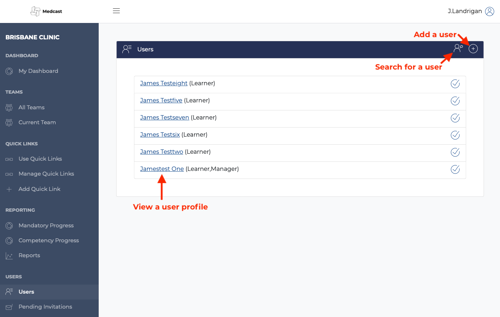
  2. Click on Users

  3. Click on the + icon at the top right of the Users block

  4. Fill out the fields in the form and click invite - see below

It is important to use the correct email address when inviting a user to a team. Some users may already have an account with Medcast. If you use an email that is attached to an existing account then that is how they will access the Learning and Administration Platform. If the email is not attached to an existing account, a new account will be created when the user accepts the invitation.

This could result in a user having more than one account.

If you need to add staff in bulk please contact Medcast.
 

Adding users

Adding users


Was this article helpful?
Helpful Unhelpful
Related FAQs

Via the Users area in Team Learning

Navigate to the users tab and click on their full name.

Provided you have permission, click on the Edit User button in their profile page

Yes, you can use the "Move User" function

Yes, you can do this via the user profile of the manager. Just click on the plus (+) symbol in the Direct Reports section

Provided you have the 'Course Enrolment Administrator' permission you can enrol team members in courses that your company has licensed through Medcast

On the Pending Invitations page you can see any user invitations that have been created but not yet accepted. From this page you can re-send the invitation or delete it.

Users in the Team Learning system must be assigned at least one manager. This can be any user who is a member of any System Role where "Is Manager" is set to true, or the manager can be set to "Self" in the case that there is no suitable manager to be assigned.

You can deactivate them but it's a good idea to check for any direct reports.
Contact Medcast